
How to scan your Rubik's Cube
The scanner reads all six faces of your cube with the camera of your computer, tablet or phone, then passes the colors to the Rubik's Cube solver. It takes about a minute:
- Allow camera access. When your browser asks, let the page use your camera. If you have more than one camera, choose one from the list under the video.
- Fill the grid with one face. Hold the cube so that one face fills the 3x3 grid on the video, square to the camera. The dots show the color the scanner sees under each sticker.
- Capture the face. Press Capture Face or the space bar. The colors appear on the unfolded cube next to the video.
- Turn the cube as shown. After each capture a short animation shows how to move the cube for the next face: tilt it after the first, third and fifth faces, and turn it to the left after the second and fourth.
- Check and solve. When all six faces are captured, press Validate. If every color appears nine times, the Calculate Solution button opens the moves that solve your cube.
Tips for an accurate scan
- Use bright, even light, such as daylight from a window. Avoid strong shadows and reflections on the stickers.
- Hold the cube still and straight, so that each sticker sits under its dot.
- Red and orange are the colors most often confused, especially under warm indoor light. If they get mixed up, calibrate them in the Tune Colors tab.
- If a sticker is still wrong after scanning, fix it by hand instead of scanning the face again.
Calibrating the colors
Cube brands use different shades, particularly of orange and red. In the Tune Colors tab you can show each color to the camera and save it, so the scanner learns the exact shades of your cube. This also lets it work with cubes that use a different color scheme from the classic white, yellow, green, blue, red and orange.
Fixing stickers by hand
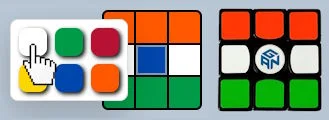
If a sticker is read wrongly, open Manual Edit, click the sticker on the unfolded cube and pick the right color. This is also the way to handle a center sticker with a brand logo, which the camera may not read as white. If your device has no camera, you can enter the whole cube this way.
Front or back camera?
Both work, but they see the cube from opposite sides, so the scanner asks you to tilt the cube in opposite directions.


- With the back camera of a phone, you hold the phone behind the cube and scan the face that points toward you. Tilt the cube backward when the scanner asks you to tilt it.
- With a front camera, such as a laptop webcam or a phone's selfie camera, the camera sees the face of the cube that points away from you. The scanner knows which camera you use and asks you to tilt the cube forward instead.
- If the picture looks mirrored, use the Mirror switch under the video.
Why is the cube unfolded like a staircase?
The unfolded cube is laid out in a staircase pattern because it follows the order of the scan: between two faces you only tilt or turn the cube once. The animation shows how the up, front and right faces stay upright while the down, back and left faces are rotated. For entering colors by hand, the solver page has 3D, flat and Kociemba views that are easier to read.
Is my video uploaded?
No. The video is analysed inside your browser to read the sticker colors, and no image or video leaves your device. Only the final color pattern is passed to the solver, in the address of the solution page. See the privacy policy for details.
Learn to solve it yourself
Once the solver has done its job, why not learn the moves yourself? Our beginner's guide to solving the Rubik's Cube explains the layer-by-layer method in six illustrated steps.